


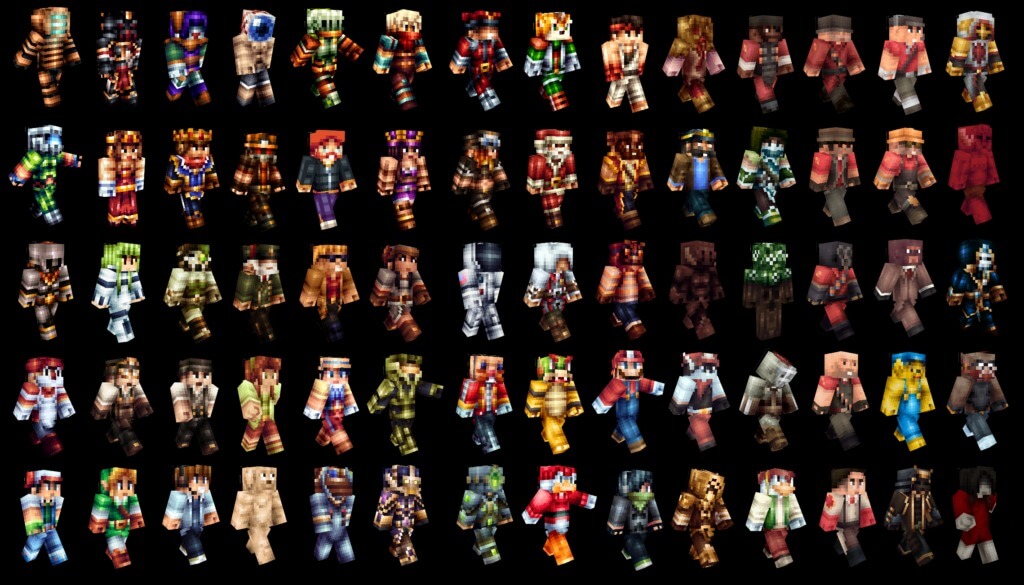
Minecraft isn’t just about surviving the night or building massive castles. It’s about who you are while doing it. Your skin is your digital identity.
Default Steve and Alex are icons, but they don’t exactly scream “personality.” Whether you want to look like a hooded assassin, a glowing neon knight, or a literal block of cheese, changing your look is the first step to true mastery.
The process is generally free and remarkably simple. However, the steps vary depending on whether you’re playing on a high-end PC, a phone, or a console. If you haven’t secured your copy yet, you can Buy Minecraft Java & Bedrock Key to get the full experience on PC.
Where to Find the Best Skins
Before you learn how to download Minecraft skins, you need a source. You are looking for a specific type of file. It’s a small, slightly distorted .png image that looks like an unfolded paper craft.
Don’t just download files from random Google Image results. Use trusted community hubs. These sites are safe and offer millions of designs:
- The Skindex: The gold standard for variety.
- NameMC: Great for seeing what trending players are wearing.
- Planet Minecraft: Perfect for high-quality, themed collections.
Simply browse these sites until you find “the one.” Look for the Download button. Save that file to a folder you can easily find, like your Desktop or Downloads. If you are new to the game, you can also check out our full guide on how to download minecraft to get started.
📖 Read More: Cool Minecraft Skins 2026: Top Trends for Boy, Girl & Anime
How to Download Minecraft Skins on PC
PC players have it the easiest. You have full control over your files. Whether you play the classic Java Edition or the modern Bedrock Edition, the Minecraft Launcher handles everything.
Step-by-Step for PC:
- Open the Minecraft Launcher.
- Select Minecraft: Java Edition or Minecraft for Windows on the left.
- Look at the top menu and click the Skins tab.
- Click New Skin.
- Hit Browse. Find that .png file you downloaded earlier.
- Choose between the “Classic” (wide) or “Slim” (thin) player model.
- Click Save & Use.
Your character will now update instantly. If you are already in a game, you might need to restart it to see the change. This is the definitive way to master how to download minecraft skins on pc. If you prefer the original version, many players specifically hunt for minecraft java skins because of the endless community creations available.
How to Download Minecraft Skins on Mobile (iOS & Android)
Playing on the go? You aren’t stuck with the defaults. The process for mobile devices is slightly different because it relies on your photo gallery.
For iPhone and iPad:
If you want to know how to download minecraft skins on ipad or iPhone, start in your browser.
- Download the skin file from a site like The Skindex.
- Save the image to your Photos app.
- Launch Minecraft and tap Dressing Room on the main screen.
- Tap Edit Character.
- Select the Classic Skins tab (it looks like three small characters).
- Tap Owned > Import > Choose New Skin.
- Select the skin file from your Photos.
For Android:
The steps for how to download minecraft skins on mobile devices running Android are identical. Just ensure the .png file stays in your “Downloads” folder or “Gallery.” If the game asks for permission to access your photos, say yes. Without that permission, the game can’t “see” your new look.
📖 Read More: Can You Play Minecraft on Nintendo Switch? Versions, Bedrock, and Legacy Edition Explained
How to Download Minecraft Skins on Xbox, PS5, and Switch
Consoles are a bit of a different beast. Sony, Microsoft, and Nintendo keep their file systems locked down for safety. This means you generally cannot download a random file from the internet and upload it to your console.
The Marketplace Method
To learn how to download minecraft skins on xbox or how to download minecraft skins on ps5, you’ll mostly use the Minecraft Marketplace.
- Open Minecraft and enter the Marketplace.
- Search for “Skin Packs.”
- Many packs are free, while others cost Minecoins.
- Once “purchased,” go to the Dressing Room to equip them.
Customization on Switch
The process for how to download minecraft skins on switch follows the same rule. You use the Character Creator. This tool allows you to change hair, eyes, and clothes individually. It’s a great way to be unique without needing an external file upload.
Pro Tip: Many players look for a specific minecraft girl skinin the Marketplace that features 3D accessories like flower crowns or flowing hair, which are very popular in 2026.
Troubleshooting & Common Questions
Even the best gamers run into glitches. Here is how to fix the most common skin-related headaches.
📖 Read More: Minecraft Characters Names: Players, Mobs, and the World That Tries to Kill You
“Why is my skin showing as a black box?”
This usually means the file dimensions are wrong. Minecraft skins must be exactly 64×64 or 64×32 pixels. If you tried to upload a high-resolution photo of your cat, it won’t work. Stick to dedicated skin sites.
“Can I use Java skins on Bedrock?”
Yes! The .png file format is the same for both versions. A skin you downloaded for Java Edition in 2015 will still work on your modern Android phone today.
“Is downloading skins safe?”
Generally, yes. However, only download .png files. If a site asks you to download an .exe or a .zip file to get a skin, close the tab immediately. Real skins are just simple image files.
“My skin won’t change in multiplayer!”
Check your internet connection. Sometimes the “skin server” is slow. If you see yourself as Steve but others see your custom skin, just wait. It will eventually catch up.
Take It Further: Skin Editors
Once you’ve mastered the download, why not try creating? Use a tool like PMCSkin3D. These editors let you paint directly onto the 3D model. You can add “Outer Layers” like jackets or hats that pop out from the character body.
Personalizing your character changes the vibe of the game. It makes every screenshot and every multiplayer session feel more like you.
Refresh your game, jump into a server, and show off that new look. You’ve earned it.