


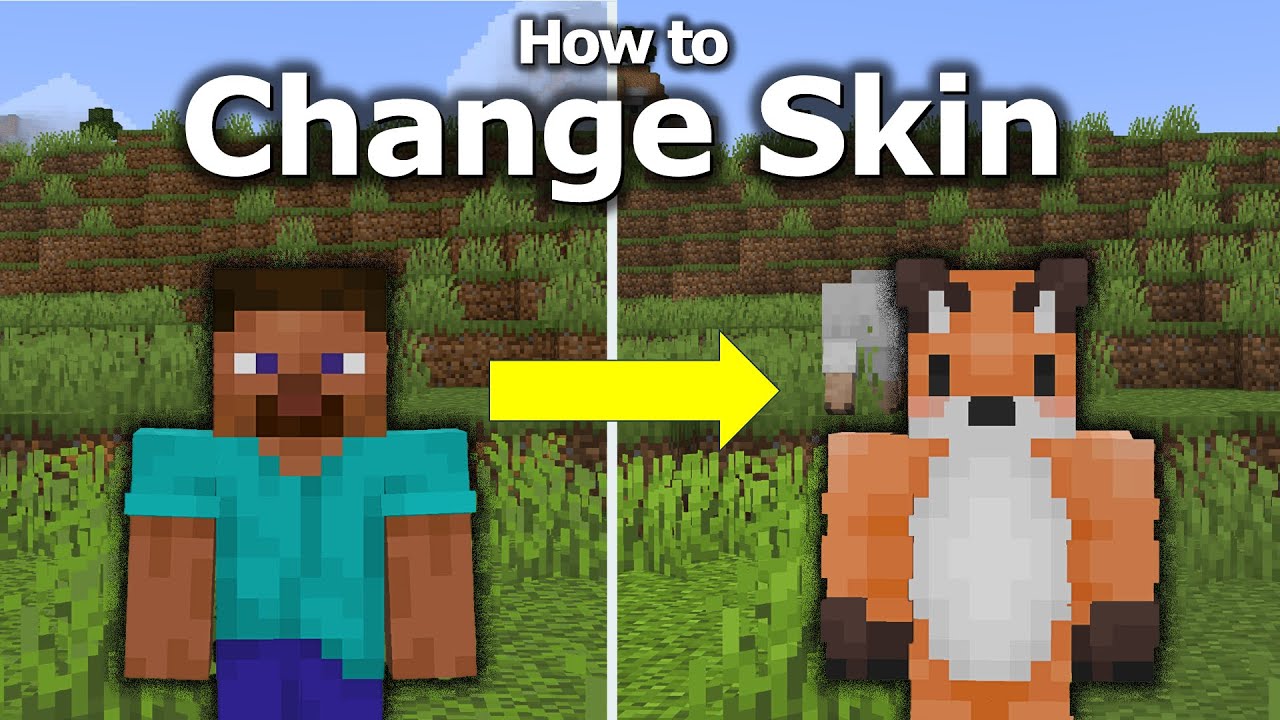
Let’s be honest. Playing as Steve or Alex is classic, but it gets old fast. Minecraft is all about self-expression.
Your skin is your identity on a crowded multiplayer server. It tells everyone if you’re a pro PvPer, a cozy builder, or just a meme enthusiast.
Changing your look is actually very simple. Whether you play on a high-end PC or a Nintendo Switch, we’ve got you covered. This guide breaks down every step to get you looking sharp in-game.
How to Change Skins in Minecraft Java Edition (PC)
Java Edition is the gold standard for customization. It offers the most freedom for players who want a truly unique look.
To start, you need a skin file. These are tiny PNG images that look like flattened paper dolls. Once you have one, follow these steps:
- Open the Minecraft Launcher.
- Select Minecraft: Java Edition from the left sidebar.
- Click the Skins tab at the top of the window.
- Hover over the “New Skin” box and click the + icon.
- Click Browse and select your downloaded PNG file.
- Give your skin a name and click Save & Use.
That’s it. Your character will update instantly. If you don’t own the game yet, you can Buy Minecraft Java & Bedrock Edition to start your journey. It’s the best way to access the full world of community-made content.
Using the Minecraft Website
You can also do this without opening the launcher. Log into the official Minecraft website with your Microsoft account.
Navigate to the “Profile” section. You will see an option to upload your skin file directly there. This is perfect if you are browsing for skins at school or work and want them ready for later.
Customizing Your Look on Lunar Client
Many competitive players prefer using third-party clients for better performance. If you’re wondering how to change skins in minecraft lunar client, the process is mostly automated.
Lunar Client syncs directly with your Mojang or Microsoft account. If you change your skin in the official launcher, Lunar updates it automatically.
However, Lunar also has a dedicated Cosmetics menu. Press the Right Shift key while in-game to open it. Here, you can toggle cloaks, wings, and hats that you’ve purchased through their store.
Keep in mind that these extra cosmetics are only visible to other Lunar users. Your base skin remains visible to everyone on the server.
Changing Skins on Minecraft Bedrock (Switch, Xbox, & Mobile)
Bedrock Edition works a bit differently. It uses a feature called the Dressing Room instead of raw file uploads.
This version is highly streamlined. It’s the standard for consoles and mobile devices. Here is how to navigate it:
- Launch Minecraft and stay on the main menu.
- Click the Dressing Room button (usually located under your character).
- Select the character slot you want to edit.
- Click Edit Character on the left side of the screen.
The “Classic Skins” Method
If you want to use a custom file on PC or Mobile, go to the Classic Skins tab (the icon looks like a clothes hanger). Select Owned, then click Import.
For console players, the process is slightly more restricted. You might wonder how to change skins in minecraft switch specifically. On consoles, you typically choose from skins available in the Minecraft Marketplace.
Many skin packs are free. Others require Minecoins. Once you “purchase” a pack, it stays in your Dressing Room forever. Just click the skin and hit Equip.
Where to Find the Best Custom Skins
You can’t change your look without a great design. Finding the right file is half the fun.
You should learn how to download Minecraft skins safely from reputable sites. Avoid sketchy pop-ups. Stick to community staples like NameMC, Planet Minecraft, or The Skindex.
- NameMC: Great for seeing what trending players are wearing.
- Planet Minecraft: The best place for themed skin packs and high-effort art.
- The Skindex: Offers a built-in editor if you want to tweak a design yourself.
Whether you are looking for Minecraft Java Skins or trending Minecraft Girl Skins, there are millions of options. You can even find skins based on your favorite anime characters or superheroes.
Quick Reference: Platform Comparison
| Platform | Method | Difficulty |
| Java Edition | Minecraft Launcher / Website | Easy |
| Bedrock (PC) | In-game Dressing Room | Very Easy |
| Switch/Console | Minecraft Marketplace | Easy |
| Lunar Client | Launcher Sync / Cosmetics Menu | Easy |
Troubleshooting & Pro Tips
Sometimes things don’t go as planned. If your skin isn’t showing up, don’t panic. It’s usually a quick fix.
Check Your File Format
Minecraft skins are very specific. They must be $64 \times 64$ or $64 \times 32$ pixel PNG files. If your image is a different size, the launcher will reject it. Always ensure the background of the image is transparent.
The “Refresh” Trick
If your skin doesn’t show up immediately, try restarting the game. Sometimes the cache needs a nudge. You can also try logging out and back into the Minecraft Launcher. This forces a fresh sync with the servers.
Stand Out in Multiplayer
If you’re bored with the default Steve or Alex, browse some cool minecraft skins to stand out on multiplayer servers. Unique skins help your friends find you in a crowd.
Are you setting up a new PC or console? Follow our guide on how to download minecraft to get the game installed correctly before you start customizing.
Invisible Skins
Some servers ban “invisible” or “mini” skins. These can give players an unfair advantage in PvP. If your skin is being replaced by Steve automatically, the server might have a plugin blocking your specific look.
Final Thoughts on Customization
Changing your skin is the first step toward making the game yours. It’s a simple ritual for every Minecraft player.
Don’t be afraid to switch it up often. Many players have different skins for different occasions. You might want a holiday-themed skin for December or a camouflage skin for a faction server.The tools are all there. Whether you use the Minecraft Launcher or the Dressing Room, the process only takes a minute. Now get out there and show off your new look!
