


TH 14 Donation account, Defends okay Cheap and Cheerful

1/3


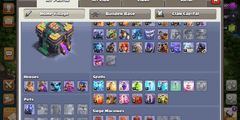
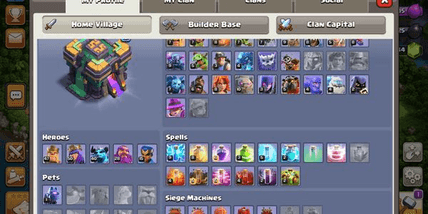
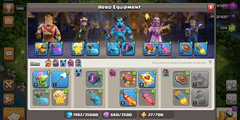
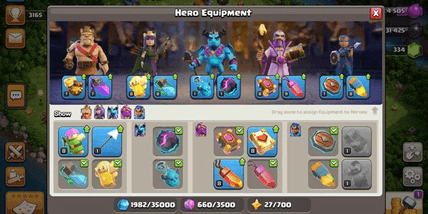
TH 14 Donation account, Defends okay Cheap and Cheerful
3.0
1 reviews
USD 5.82
Price is not final
Minimum Purchase:
1
Sold
1 (100%)
Average Delivery Time:
11 hours
Product Description
TH Level
TH 14
Builder Owned
5
Change Name
Tidak Bisa
Barrack Level
Max
Builder Hall Level
7
TH Level:
TH 14
Builder Owned:
5
Change Name:
Tidak Bisa
Barrack Level:
Max
Builder Hall Level:
7
How to Trade a Clash of Clans Account
After you get the COC email and password data, follow these steps:
Login to the Clash of Clans game and open Settings
Press the disconnect button to the right of the supercell ID text
Press the Enter button > Continue
Enter the email address provided by the seller
Login to the email address provided by the seller, check your inbox, and open the email from supercell
Enter the 6 codes listed in the email and press continue
Press the Confirm button to continue logging in > Press the OK button
Make sure Clash of Clans is connected to the Supercell ID
Bind the account with your Google Play account to prevent hackbacks
Secure the email you receive from the seller
If so, go back to my items and complete the order
How to Secure Email
Open your Gmail application and add an account by touching the "add account" button
Next, check the Goggle option and select "Next"
Enter the email sent by the seller then select "Next" and enter the password sent by the seller
Next, open your COC application then select settings at the bottom right, the button has a gear image.
Select the connected button so that you are disconnected from the old account, and press disconnected again so that COC is connected to the new account
Select which Gmail account you want to play with, check the account you just bought and select "Ok"
You will be asked to load a new account, select "Load", type "CONFIRM" and select "Okay"
Change your Gmail password, and activate 2-step verification in Gmail so that the account you buy is safe and cannot be hacked again.
Open Gmail via desktop then click the Gear image in the top right corner.
Click "Change password" to change the account password.
Click "Change password recovery option" to change the recovery email and cellphone number
Click "Other Google Account settings" > Select Sign-in & Security > Click 2-step Verification > enter cellphone number
Ask the seller to delete the Google Account from the cellphone, and ask for screenshots as proof.
Next, to ensure your new account is still logged in on the seller's device, you can delete the device by following these steps:
Visit myaccount.google.com
Click Sign-in security/Login & security
Select the Device activity & notifications menu/Device activity & notifications
In the Recently used devices column, select Review devices
Select the device you want to delete, then click Remove
ACCOUNT DESCRIPTION
Town Hall Level: 14
Builders: 5
Gems: 334
Change Name: CN 500 Gems
Barracks Level: 16
Spell Factory Level: 7
Defense: OK
Barbarian King Level: 47
Archer Queen Level: 50
Grand Warden Level: 28
Royale Champion Level: 15
After you get the COC email and password data, follow these steps:
Login to the Clash of Clans game and open Settings
Press the disconnect button to the right of the supercell ID text
Press the Enter button > Continue
Enter the email address provided by the seller
Login to the email address provided by the seller, check your inbox, and open the email from supercell
Enter the 6 codes listed in the email and press continue
Press the Confirm button to continue logging in > Press the OK button
Make sure Clash of Clans is connected to the Supercell ID
Bind the account with your Google Play account to prevent hackbacks
Secure the email you receive from the seller
If so, go back to my items and complete the order
How to Secure Email
Open your Gmail application and add an account by touching the "add account" button
Next, check the Goggle option and select "Next"
Enter the email sent by the seller then select "Next" and enter the password sent by the seller
Next, open your COC application then select settings at the bottom right, the button has a gear image.
Select the connected button so that you are disconnected from the old account, and press disconnected again so that COC is connected to the new account
Select which Gmail account you want to play with, check the account you just bought and select "Ok"
You will be asked to load a new account, select "Load", type "CONFIRM" and select "Okay"
Change your Gmail password, and activate 2-step verification in Gmail so that the account you buy is safe and cannot be hacked again.
Open Gmail via desktop then click the Gear image in the top right corner.
Click "Change password" to change the account password.
Click "Change password recovery option" to change the recovery email and cellphone number
Click "Other Google Account settings" > Select Sign-in & Security > Click 2-step Verification > enter cellphone number
Ask the seller to delete the Google Account from the cellphone, and ask for screenshots as proof.
Next, to ensure your new account is still logged in on the seller's device, you can delete the device by following these steps:
Visit myaccount.google.com
Click Sign-in security/Login & security
Select the Device activity & notifications menu/Device activity & notifications
In the Recently used devices column, select Review devices
Select the device you want to delete, then click Remove
ACCOUNT DESCRIPTION
Town Hall Level: 14
Builders: 5
Gems: 334
Change Name: CN 500 Gems
Barracks Level: 16
Spell Factory Level: 7
Defense: OK
Barbarian King Level: 47
Archer Queen Level: 50
Grand Warden Level: 28
Royale Champion Level: 15
Product Review
3/5
1 Review
5
0
4
0
3
1
2
0
1
0
Product Review
View All3/5
1 Rating
5
0
4
0
3
1
2
0
1
0

No reviews yet for this product rating
Offer Details


InnaCOC
Last online 413 days ago
This Seller isn’t Taking Orders Right Now
You can try another seller.
100% Secure Payments Guaranteed by Trade Guard
This Seller isn’t Taking Orders Right Now
Check Other Sellers
03.0 / 5.0(1)
Offer Details
InnaCOC
Last online 413 days ago
This Seller isn’t Taking Orders Right Now
You can try another seller.
100% Secure Payments Guaranteed by Trade Guard
This Seller isn’t Taking Orders Right Now
Check Other Sellers
Still looking for the right offer?
See All Offers